
Being the kind of person who infrequently writes to a blog in the foul year of our Lord Two-Thousand-and-Twenty-Six, I am obviously the sort of person who has a preferred peripheral company. It’s probably equally obvious that I am a Mac user, and while that may be the case, I’m not particularly fond of Apple’s peripherals. Their laptop keyboards are, now, since the M-Series of MacBooks Air and Pro, excellent; the Magic Mouse I can take or leave. My preferred peripherals, for my Mac and my iPad, are made by Logitech.
My favoured mouse was the Logitech MX Master 3. It is still a current mouse, but has been demoted to ‘work mouse’: it now lives in a locker in the office I work from for two days a week. The previous work mouse was a M720 Triathlon, which I did not leave in a locker, but carried around in my bag to use in the two-day-a-week office, and another office, where I work for one day a week. The other two days I am at home, where the MX 3 lived on my desk. Yes, it is very confusing. The Triathlon, presumably so named because it can work with up to three different computers, lived in my bag if ever I was working in a coffee shop (obviously I’m that kind of person), because as good as the trackpads are on Apple’s laptops (and they are excellent), after using a mouse since Windows 3.1, thirty-plus years of habit is hard to break and I have been known to reach out to use any number of items to the bottom-right of my peripheral vision while working. This has included, but is not limited to: my phone, my glasses case, a Casio fx-85GT calculator, my AirPod case; the AirPod case even has an ergonomic, mouse-like feel to it and I’ve given it a mouse-jiggle, wondered why my cursor wasn’t moving, before realising. Having a mouse on me prevents me from looking like more of an idiot than I am. So now I have a ‘bag mouse’ as well.
The trusty M720 Triathlon I used for work developed a fault. It would refuse to connect to my laptop and its LED would blink rapidly. Having just put a new battery into the thing (one of the few downsides to an otherwise excellent mouse is that it is not rechargeable), I assumed it had been damaged by the ever-increasing crush of things that I keep in my workbag. Necessity being the mother of expenditure and the best reason for retail therapy, I now had the perfect excuse to upgrade to the MX Master 4 (for Mac), make the MX Master 3 (for Mac) my ‘office mouse’, and get the natty little Mobi Fold to use as my ‘bag mouse’. The Mobi Fold has a cute little (currently free) carry case and everything. It’s adorable. Ergonomically dreadful, but adorable.
Perfection achieved
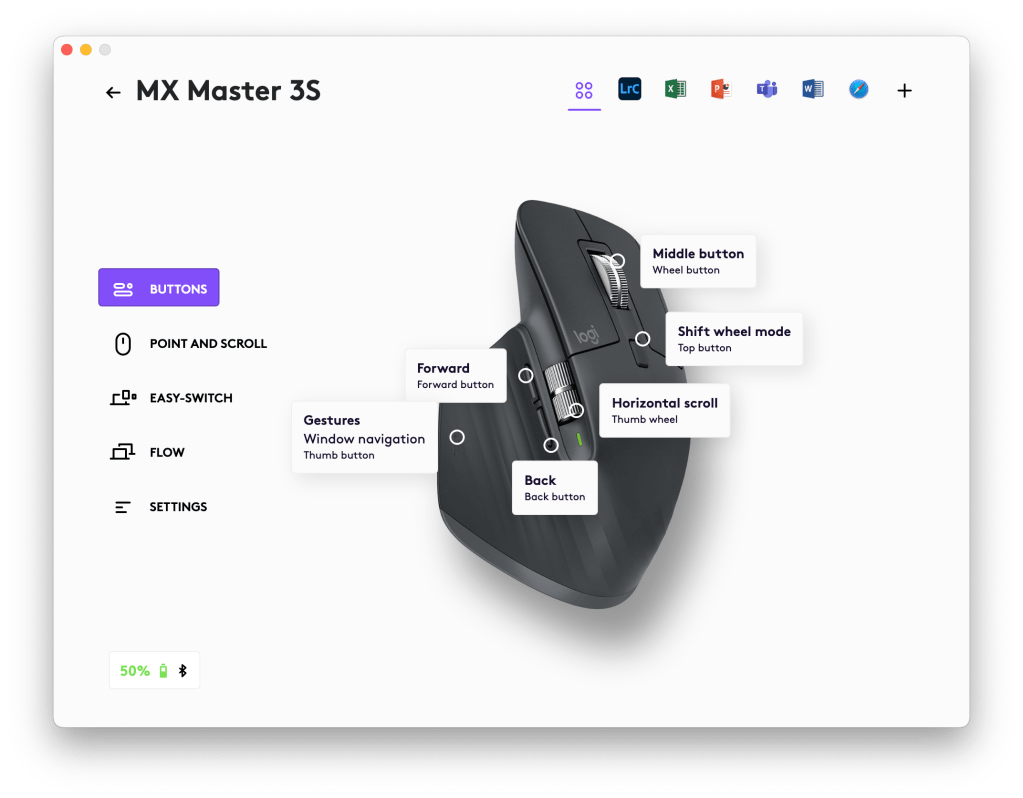
The MX Master 3, which is still available with the suffix ’S Bluetooth Edition’, is an excellent mouse, for a right-handed user, whose hand fits it. In what must have been a super-spreader event of plague-like proportion, I can only assume its designers placed a lump of plasticine on a desk and had it handle by as many people as could fit through their studio, each one sculpting it more and more perfectly into the negative space between the human hand and a flat plane. Resting your hand on the mouse puts your fingers exactly onto the left- and right-buttons and the thumb onto another button, the input for which can be customised with software. The thumb is also in easy reach of two additional buttons, set by default for Forward and Back navigation, but similarly programmable to the main thumb button in the Logi Options+ app — more of which later. Between the perfectly positioned left- and right-buttons is the MagSpeed Electromagnetic scroll wheel, which is so fancy they named it “magnetic” twice. Light to move and rapid to scroll, the satisfying notch-like feedback as each line scrolls can be switched off to freewheel through a thousand lines a seconds, should you wish to do so. Above the programmable Forward and Back thumb-buttons is a horizontal scroll wheel that lacks its sibling’s satisfying click, and ability to freewheel, but which does have a resistive heft to it, meaning it is not easily nudged or caught when not in use; it is solid and gratifying to use when required. Both scroll wheels are useful in applications that display large images, or similarly large or zoomed-in areas, and can be used instinctively and in tandem to navigate.
The functionality of the mouse is expanded by the Logi Options+ app. The MX 3 has six programmable buttons on it, not including the standard left- and right-clicks. All six of those buttons, including the “top button”, which by default turns on and off the notched or smooth scrolling of the vertical scroll wheel, can be changed on a global or on a per-application basis. Using the Smart Actions and assigning keystroke E to the Forward button and keystone G to the Back button in Lightroom (and Lightroom alone) means I can easily flick between Loupe and Grid views; this helps my workflow when I’m choosing which images I want to develop. A small thing, but something you miss like a finger when using another mouse that doesn’t have it. Options+ is used, and needs to be running, for Flow to work. This allows the MX 3 to work between two computers, not quite seamlessly, but with less friction. Where it excels is copying from one OS and pasting into another; where the seams start to show is when it tries to use two different computers, which can be running different operating systems, as a single expanded desktop. What’s impressive is that holding the mouse pointer against the screen edge will let it bleed through, from one computer’s desktop to the next, allowing you to control that computer with the same mouse. If you’re using a Logitech keyboard that’s paired in Options+, the device the keyboard is paired to will change with the mouse. There’s some lag going between systems, and it doesn’t always work flawlessly, but when it does, it makes the chore of having to use two different computers less burdensome.
Over its older sibling, the MX Master 3, the 3S has been updated with softer button clicks, that match the new MX 4 and are apparently 90% quieter than those of original 3, and they didn’t strike me as particularly loud. That of the Apple Magic Mouse was more noticeable, but that was a very satisfying and sturdy click, and you can change it to a silent tap of the glass hell, should you so wish.
The MX 4 has the same delightful ergonomic shape as the MX 3, with a nice bit of extra heft to it, the result of its haptic engine. A haptic engine? you ask. Yes, a haptic engine, a low frequency quasi-speaker that simulates touch and movement by vibrating the surface you’re touching: Apple’s MacBook Air and Pro touchpads do not move when clicked, the Taptic Engine (see what they did there?) creates the sensation of touch against your thumb/finger. The last of the Home Button iPhones did the same and it works/worked very well. Logitech’s implementation of similar technology comes along with the introduce of the MX 4’s Actions Ring.
The Actions Ring button and haptics replace the Gesture button on the MX 3, albeit at a slightly different place which makes changing between the two mice maddening. Not that this is something a normal person, with one mouse, not three, will experience, but it takes some getting used to the thumb-tip position of the Actions Ring button, as opposed to the MX 3’s position of the Gestures button below the interphalangeal joint. The movement to use either is different: a grip action on the MX 4 compared to an extending motion and downward press of the thumb on the MX 3. The Gestures button on the 4 has been moved in front of the Forwards and Back buttons, and is slightly too far out of reach to be as useful as it was on the flat thumb rest of the 3.
I use the Gestures button on its default setting, for window navigation: clicking it displays all the windows I have open on one desktop (too many); clicking, holding, and moving the mouse left or right moves between desktops. I’m also an accursed Spaces/multiple-desktop user, with a different project on, currently, six different virtual desktops. Mission Control (displaying all the windows on one desktop at once in non-Apple parlance) is useful to visually hop between one window and another on the same desktop, though I usually place them so one doesn’t completely cover another and will click on an exposed corner to bring the buried app to the fore. Command-tabbing between applications is my preferred method to change between applications, but when the one you want is the last one you used it does become a chore to find it: I currently have fifteen applications open, and that is a lot of tabbing when I could hold use Gestures to find that last used application on its (fifth) desktop (in fairness, this is an absolute chore to swipe to as well). Gestures, built into the MX 3, in its default position, has become second nature to me. The M720 Triathlon does not have exactly the same shape as the MX family: less plasticine was fondled by fewer people resulting in a slightly less ideal shape, but still a very good one. It does, however, have a similar flange on its left side, onto which the thumb rests, and that too has a Gestures button built-in. Not having a Gestures button where I expect it is like having a thumb injury: I can still use the mouse, but the click I am used to doesn’t work and I experience a momentary panic. My mouse is broken. My computer is broken. Maybe I’m broken. (I am, but not about this).
AI Is Not The Answer
In place of Gestures button on the thumb pad the MX 4 has an Actions Button. The Actions Button has haptic feedback. Unlike the Gestures button on the MX 3, which has one very particular point that can be pressed, the Actions button can be pressed at any point on its surface. By default, it opens the Actions Ring, which is where it has fallen foul of my deeply ingrained habits and where Logitech have sprinkled some AI sauce in their hope of improving on perfection. The Ring can be set to include eight shortcuts, which can contain shortcuts within them that break off like goo in a neat/needless animation (delete as appropriate to your taste in whimsy; I rather like it), one of which is Explore AI. In this submenu are four different options for four different AIs: Reply with ChatGPT, Ask Perplexity, Rephrase with Gemini, Open MS Copilot. These can be further orchestrated to carry out specific requests of each AI. Logitech have decided that this implementation of AI is the answer to further improve and differentiate the MX 4 from its older sibling. AI is not the answer. AI is never the answer. AI can help find, phrase, decide on, or otherwise discover the answer, as can any appropriate tool, but it is not the answer. As with cheap keyboards that market themselves as better with the a series of crap plastic buttons, one of which is marked with a globe to signifying opening a browser and another with @ symbol to open email client, a shortcut button to choose your preferred AI client is not the way to improve on a product. Even appreciating that this is a demonstration of what can be done with the button, it is a crippling amount of choice and setup that only the most ardent AI fan would want to make use of. Other options are play/pause music, which is easier done with the shortcut key on F9 on my Logitech keyboard, typically in reach of either my first or middle fingers of my right hand. Being right-handed, along with about 87% of the rest of the world, these are the fingers I use most often (my typing is dreadful, I wave my hands over the keyboard like I’m conducting, not typing, and the position of my right hand moves by three or four columns of keys, while my left hand pecks at only the three leftmost rows; RSI will be entirely my own fault). Any shortcut that tries to replace something done with these fingers is utterly pointless: nothing will be faster than what I can poke at with an index finger, particularly not something which requires squeezing something with my entire hand and making a deliberate motion with my wrist (joke here), as is required to make use of the Action Ring. This is particularly egregious when that squeeze-and-move motion was used to move between virtual desktops. Any user with even the slightest amount of history with the MX 3 is going to be driven up a wall by this change and further aggrieved that Gesture has been mapped to a new third button in front of the Back/Forward buttons. This button is out of reach and its positioning makes it more difficult to flit between desktops, as has become my habit. These buttons can be remapped in Logi Options+, but this introduces another issue with the haptic engine: move between desktops and the haptic will click back against your thumb, sending a pulse that can be felt through the length of the thumb, the instinctive response to which is stop holding the mouse. More specifically, the response is “Argh! What the fuck is that?! Drop it! Drop it!”, which is not an experience you want when using a mouse.
Like the other programmable buttons on both MXes, the Action Ring can have application specific shortcuts. Here I thought might be its saving grace. This was most relevant to me in Lightroom, where eight of properties of an image were mapped to the Ring: Exposure, colour temp, Vibrancy, etc. Selecting the property from the Ring would then allow the horizontal scroll wheel to changes the values rather than direct indirection with the sliders. There might be some value to this in theory, perhaps to throw a quick edit together before knocking at hairs and perfecting the image with sliders. The problem is that it simply doesn’t work. It first depends on opening the Action Ring when the properties and their sliders are right there on the screen, beside the image. Second, it relies on the user recognising the property from its icon in the Action Ring, which I’m sure many power users do, but this amateur does not. Hovering the cursor over the icons does bring up the name, but at this point, you might have well as moved the cursor over to the slider on the right of the screen. This means you have to squeeze the mouse/click the Actions Ring before clicking onto the quality to edit (assuming you recognise them by their logos), then edit by button. Which feels far more convoluted compared to moving a slider. More than either of these points, the entire endeavour is doomed from the off by its implementation. The value change is done by a coded shortcut and doesn’t interact with the property directly. This causes massive lag, a literal sit-and-wait pause between an incremental move of the scroll wheel and the change being applied to the image, rendering the entire operation pointless: a near-instant change to the image can be made by either moving the slider in Lightroom’s interface or by selecting the value and changing it with the +/- keys (actually =/-, but we won’t quibble). This might be Mac-specific, but even if it is, it certainly is not worth changing operating system for.
Similar shortcuts are mapped to the Ring in Excel, an application I spend an unhealthy amount of time in. So much time, in fact, that I have shortcuts and functions mapped into my fingertips; I see use of a mouse in Excel as skill issue on my part.
Squandered potential
A non-haptic, easier-to-depress Gestures button would have been a great update, and the overall look of MX 4 is an improvement over the now seven-year-old MX 3. The new mouse has a smooth plateau, the horizontal scroll wheel becomes part of that flattop design, and the logi logo beneath the clear plastic of the left button is a nice touch, though how well that will age, physically, as the plastic is worn by years of clicks, and in terms of taste, remains be to seen. Its smoother, carbon fibre-like finish is preferable to the rougher, almost tacky feel of the MX 3 as well. As an item of desk furniture, the updated 4 is more attractive than its older sibling, but as a functional piece of equipment, its addition features detract from usability and for that it suffers. Within the shape and structure of the MX 4 is a better MX 3.5, and perhaps even enough for it to have warranted the increase of integer. But in overreaching, Logitech have dropped the ball and the mouse with it, making a product that is not only less than the sum of its part but decidedly less than the product they set out to replace. And for that, this is a two star product. Over-engineered, and over-priced for it, even more so the already expensive MX 3.
The MX 3 might be the perfect mouse. It’s ergonomics are as good as a general purpose, mass production mouse can be. Its functionality is about as good as that of a mouse can get: left-click, right-click, vertical (and horizontal!) scroll, with the added productivity boast that the three addition mouse buttons provide. Its tracking is near faultless, the battery life is excellent and charging it is sensible and rapid — I can even use it whilst it’s charging. It is not without fault: the way I hold it is making my wrist ache in my old age because I pivot my entire hand from a bump on my carpal ligament, and at some point I’ll have to consider something like the MX Vertical or even a trackball, like the MX Ergo S. The 3 feels a little light when compared directly to 4, and the texture of it is not to everyone’s liking, the rougher, grippier material setting my partner’s teeth on edge; she prefers the smother feel of the MX 4. The obvious lack of support for left-handed people aside, it’s difficult to see how the mouse can be improved. It has plenty of detectors online and 43 one-star reviews on Logitech’s site alone, many about its reliability, many more about the differences between the original MX 3 and the update 3S, and the occasionally conspiracy theory about them dying just outside of warranty, on which I will try to remember to post an update on in two years’ time.
The MX 3S is cemented as the pinnacle of its design by the changes that differentiate it from the MX 4. I’m not alone in finding it difficult to improve upon perfection: Logitech are at a similar loss in trying to justify the full integer update in the MX line.
Bag Mouse
While juggling mice, orders for mice, and mouse shipping with the increasingly dubious UPS, I ended up with a third (actually fifth) mouse from Logitech, the Mobi Fold, a mouse, which, as the name implies, is designed to fold, making it more, well, mobile.
The Fold’s ergonomics are awful. Shorter than both the MXes in its height from the surface, steeply angled at the titular Fold, it jams the flat of the wrist, tendons and all, onto the desk and makes this old user’s arm hurt from first contact with it. Damn if I don’t love it, though. It has both left and right buttons, a minimum, granted, but it also Adaptive Touch Scrolling build into the middle section, a part of the mouse that is not a middle button, but a part that can be programmed to have two middle buttons. I have mapped my beloved Gestures (Mission Control and swipe between Spaces on my Mac) and App Expose onto the two clickable buttons. When not clicked, the whole middle section scrolls a window vertically. I love it. It’s might be worth the carpal tunnel syndrome it’s giving me. Scrolling on the mid-section is a little slow to react, but overall work fine. Logi reckon the Fold can be opened and closed 50,000 times, before signs of wear or malfunction show, enough for 15 years of use, if you open and close it 9.13 times a day. I’m not setting a reminder for this, I don’t think I’ve owned and still used a single piece of tech for fifteen years — maybe the desk lamp I had, before I decided I had to replace it (it got in the way, I couldn’t get it into a position that lit my keyboard without blocking part of my monitor. And I thought buying an Anglepoise would make me feel better. It did. For a morning). The Fold has a natty case to store it in, which is currently free when the Fold is ordered from Logitech’s site. Not an ergonomic tool that I would want to use for an entire day, but to use in meetings, to use in a moment of typing away from my desk, to put in a bag and have available when needed, it is absolutely excellent.
The original ‘work mouse’, the M720 Triathlon that I thought was broken has been handed down to the youngest-eldest child, at home after University. It needed a new battery, despite its having the battery replaced recently. Since the battery was replaced, it’s worked without issue. No connectivity issues, no flashing LED. The thing that started this (expensive) journey may have been nothing more than a faulty battery.
Header image copyright Logitech


